
1. Procedure Title
Name of the Process:
Schema Markup Implementation
- Purpose
Brief Description:
To establish a standardized process for implementing Schema Markup on websites to enhance search engine visibility and user experience.
3. Scope
Involved Areas:
SEO, Web Development
4. Responsibilities
Roles and Responsibilities:
SEO Specialist:
- Identify the type of schema to be implemented for each page, including the homepage, services or target page, and city pages.
- Create schema using SchemaWriter and implement it on the website under SEOPress Pro options for Schemas or use Google Tag Manager for Non-Wordpress websites.
Web Developer
- Check Google Search Console for any issues that may arise due to problems with Schema Markup implementation.
- Remove any hard-coded schemas that may cause duplicates or errors.
- Remove FAQ schema options in widgets that may lead to duplicate errors.
5. Definitions and Key Terms
Glossary:
- Schema Markup: Structured data added to websites to provide search engines with more information in JSON script code format.
- LocalBusiness: A schema type representing a physical business location.
- Webpage: Schema representing a webpage.
- Service: Schema representing a service offered.
- Organization: Schema representing an organization.
- FAQ: Schema for frequently asked questions.
- SEOPress Pro: Plugin used for SEO on WordPress sites.
- SchemaWriter: Tool used to generate schemas based on target keywords and business details using AI.
- Ahrefs SEO Toolbar: Toolbar from Ahrefs that can be installed from Chrome Extensions.
- ChatGPT4: Tool used to create AI-generated content.
- Schema Validator: Validator.Schema.org used to check the generated schema markup for validity or errors and to verify existing schema markup on the URLs.
- Google Entities: Information pieces in Google’s Knowledge Graph database defining singular, unique concepts for answering user queries in search.
- GBP: Google Business Profiles found at maps.google.com containing client or business information.
- LastPass: 3rd party tool securing client website login accounts.
- Procedure Details
6.1. Preparation and Prerequisites
- Create a Schema Tracking Sheet containing all URLs for pages and blog posts.
- Review existing onsite schema markup implementation.
- Identify required schema markup types per page.
- Gather business information from the website or GBP profile address:
Business Name, phone number, email, logo URL, address, GBP URL, latitude & longitude (from GBP URL), company description, all citation URLs including social media channels, opening hours, contact us page URL, Legal Name.
- Gather target keywords from CLIENT_NAME_WORKBOOK_INFORMATION sheet of the main target pages.
- Access to the website’s backend.
6.2. Step-by-Step Procedure
- Create a Schema Tracking Sheet using the template.
- Check and review existing schemas for any errors.
Why: We need to find what schemas have already been implemented onsite to ensure that there will not be any duplicates and update schemas that have errors.
- Gather all the URLs of website pages and blog posts from website.com/sitemap.xml and add them to the Schema Tracking Sheet.
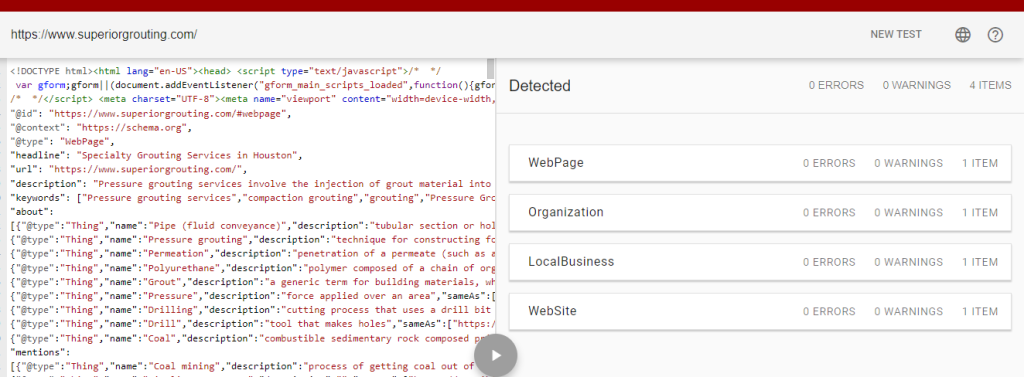
OPTION 1: Check each URL using the Schema Validator and record all the existing schemas on the Schema Tracking sheet.The number of errors will be displayed at the top. If there is an incomplete property in the Schema Markup, a warning will appear.
-
- Mark the Schema markup that contains errors and needs improvement with a Red Uncheck Box. Red Uncheck Box means that there are existing Schema Markups that should be reviewed and revised to optimize.

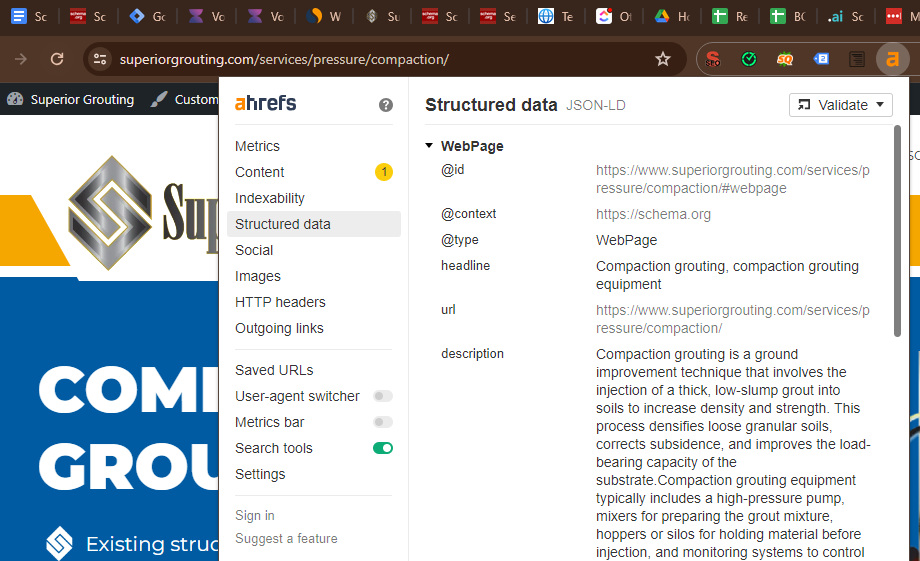
OPTION 2: Click the Ahrefs Toolbar – Structured Data. Web pages with schema markup errors will be shown as broken codes and the results layout is messed up. Use Schema Validator to double check.
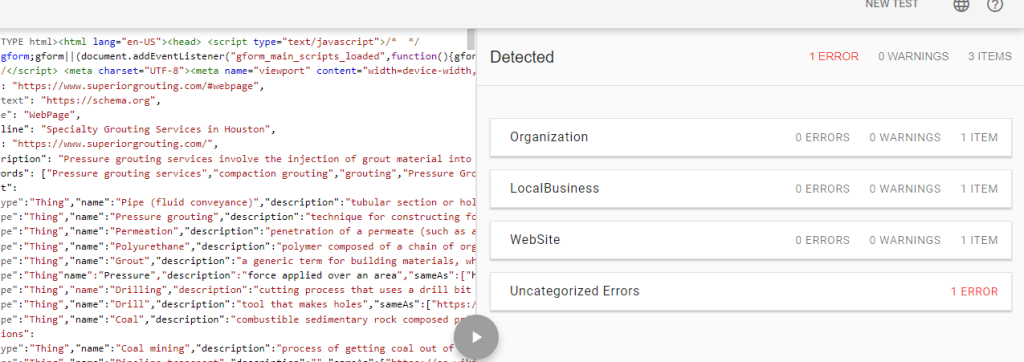
- To identify which schema has errors using the Schema Validator, follow these steps:
- Click on the item that contains the error.
- Click on the JSON LD.
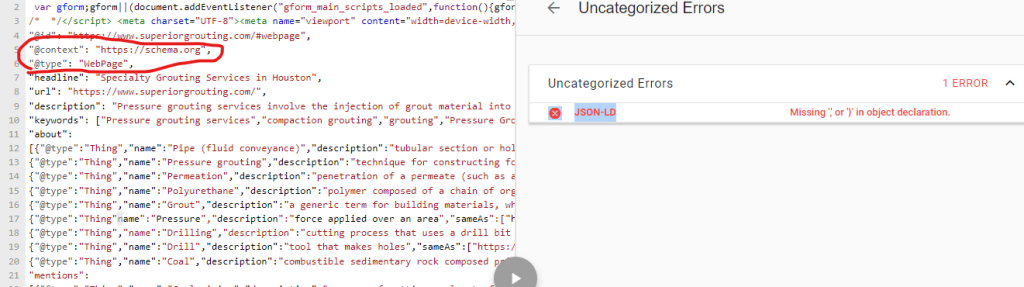
- On the left side, you will see the part of the error.
- Look into the code until you find the top section of the code containing the “https://schema.org”.
“@context”: “https://schema.org“,
“@type”:WebPage”,
- Mark this error on the sheet with Red Unchecked Box.
- Identify the types of schema markup required per page.
| Type of Page | Schema Markup |
| Homepage, About Us, Contact Us |
|
| Service Pages / Target Pages |
|
| City Pages |
The example URL contains 3 levels. So 3 list items should be added. <script type=“application/ld+json”> { “@context”: “https://schema.org/”, “@type”: “BreadcrumbList”, “itemListElement”: [{ “@type”: “ListItem”, “position”: 1, “name”: “Home“, “item”: “https://www.superiorgrouting.com/“ },{ “@type”: “ListItem”, “position”: 2, “name”: “What We Fix“, “item”: “https://www.superiorgrouting.com/what-we-fix/“ },{ “@type”: “ListItem”, “position”: 3, “name”: “Pipeline Abandonment“, “item”: “https://www.superiorgrouting.com/what-we-fix/pipeline-abandonment/” }] } </script>
|
| Other Pages / Industry |
|
| Mother Pages
(these are pages that has subpages) /services /industries |
|
- Add the company information.
- Note: This will be created only once this is a new client business or this is the first time we created a schema for the website.
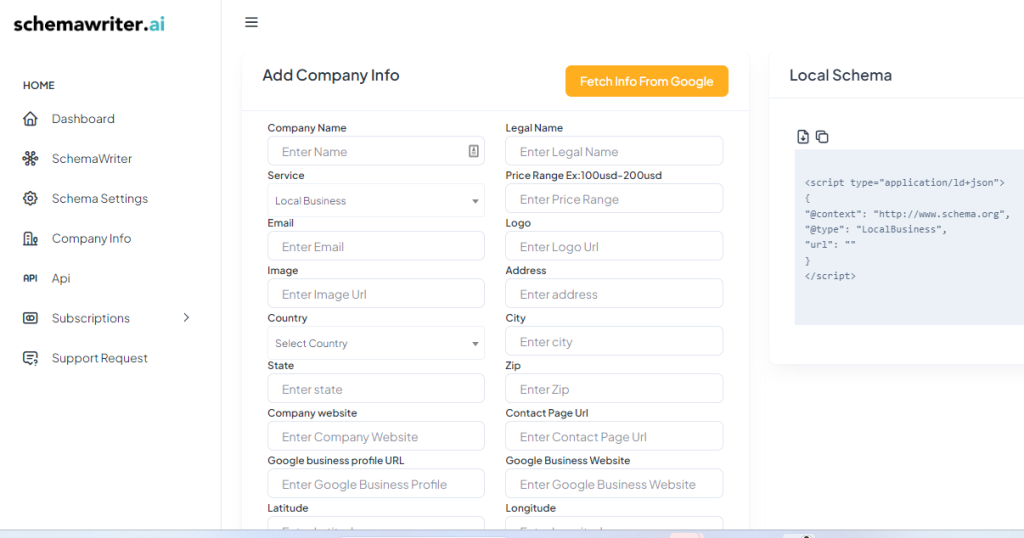
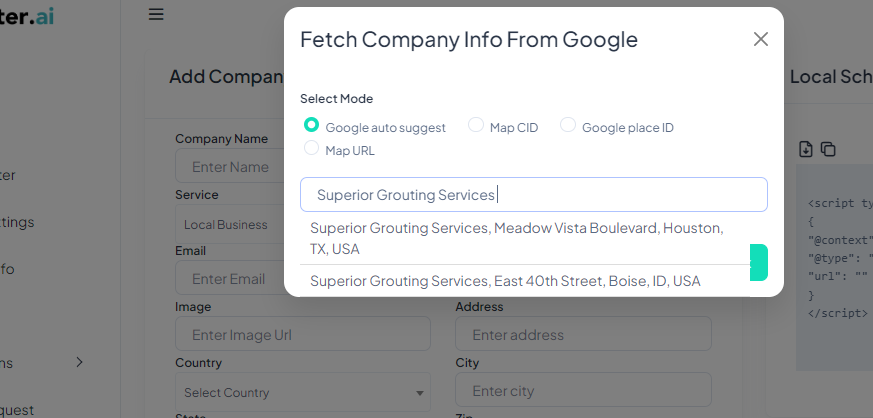
- Click Company Info – Add New – Fetch Info from Google – Search for the “Business Name”
- Check if all the details added to each cell is correct. Check the address cell, this should not have all the states, zip code or city. The address details should be added separately.
- Check the target keywords of each page from the CLIENT_NAME_WORKBOOK_INFORMATION sheet.
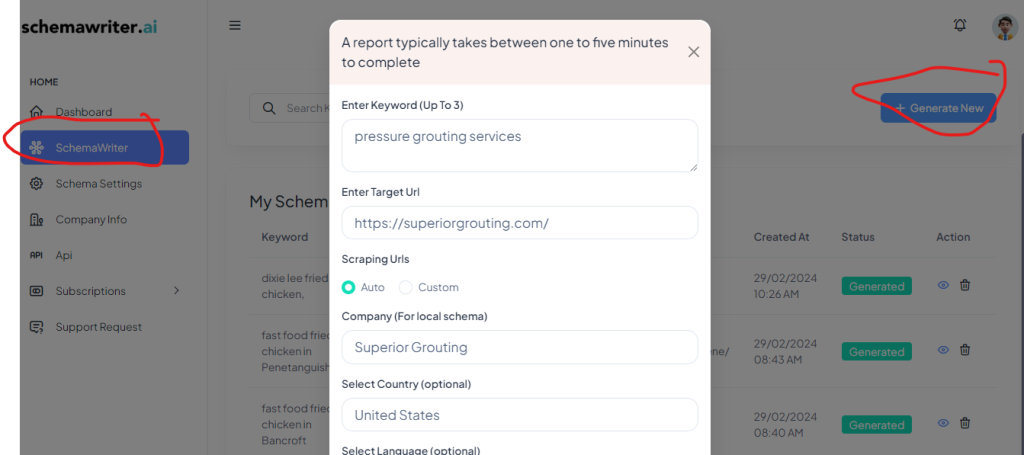
- Copy the URL and the main keyword. Choose the correct company or business name and the target country.
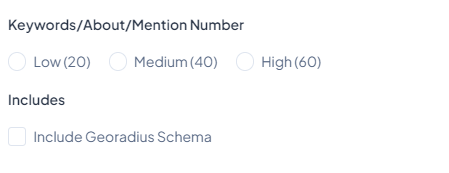
- Choose medium Keywords (40) for pages. Check the include georadius schema if you are creating for the homepage or city page with GBP profile. Do not check the Georadius schema if you are creating schema for service pages or other pages.
- Review the generated Webpage, Organization and LocalBusiness Schema and check for any errors or check if the content is relevant to the webpage service or target keywords.
- Click each Schema type to see the details added. You can update the details if they are not correct.
- NOTE: The target keywords should be mentioned in the title and descriptions.
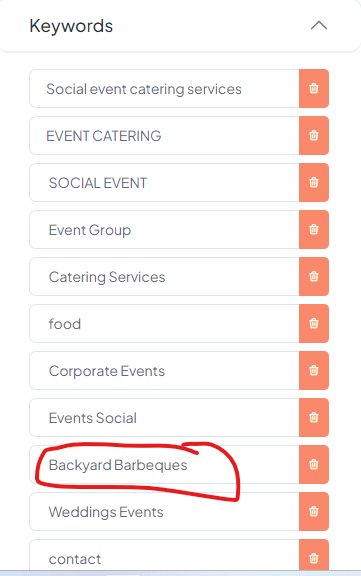
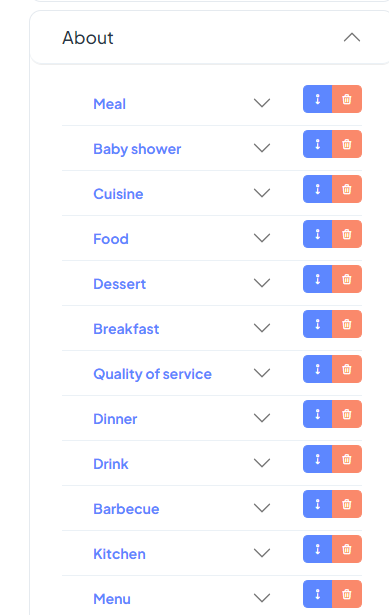
- For webpage schema, check if each Keywords, Abouts, Mentions entity is relevant to the company. Remember to remove any entity that is not relevant to the services of the business that is a another country, or any mention of other cities except the main city they are located or targeting, entities that are not relevant to the service or the type of service of the company.
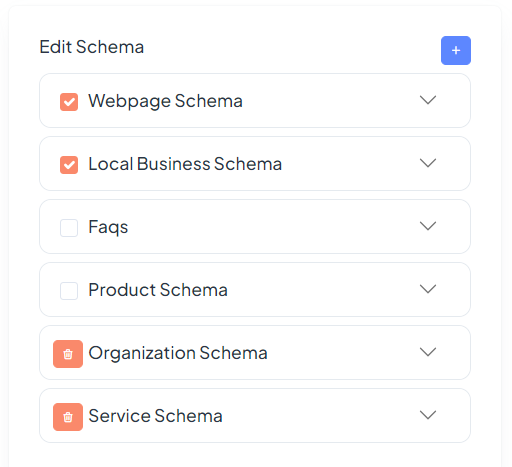
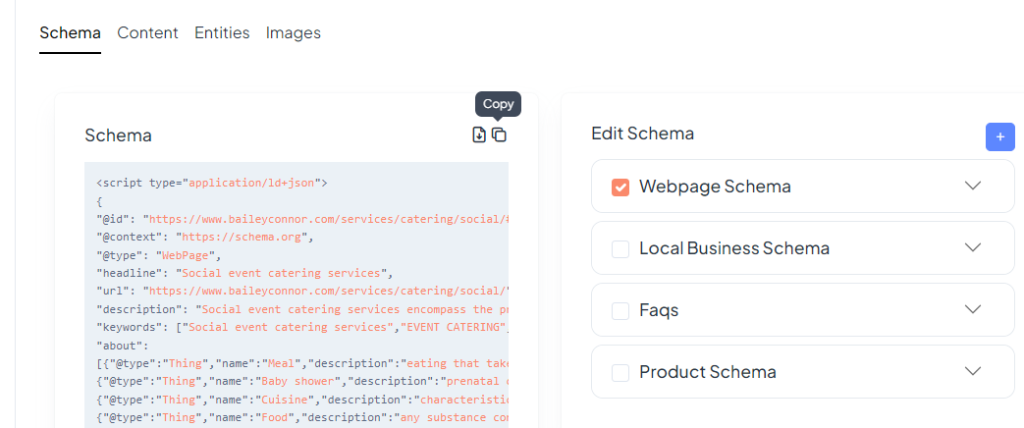
- If you are creating a Webpage schema and Service Schema for the service pages, make sure that the check mark for LocalBusiness, Product, FAQs and organization are unchecked. This will make sure that you will not duplicate the existing schema markups.
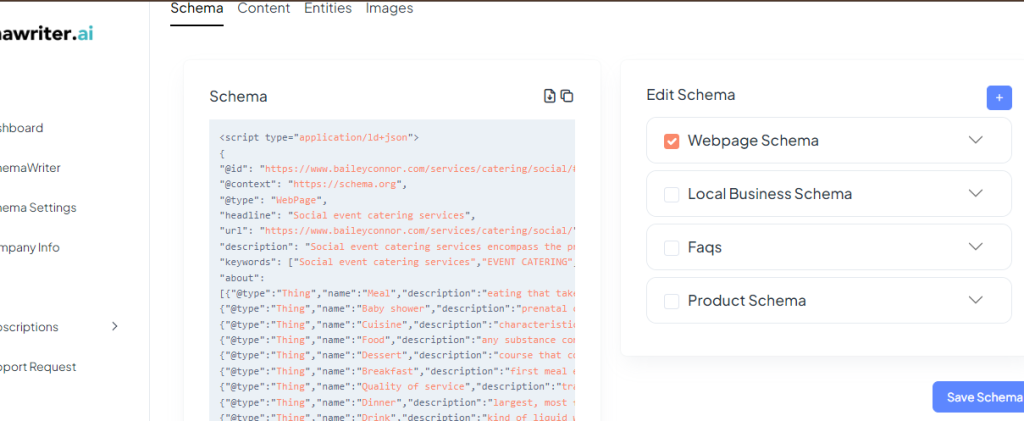
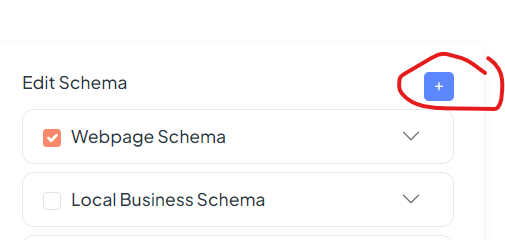
- To create a Service Schema for a Service page. Click the “+” button to add Service Schema.
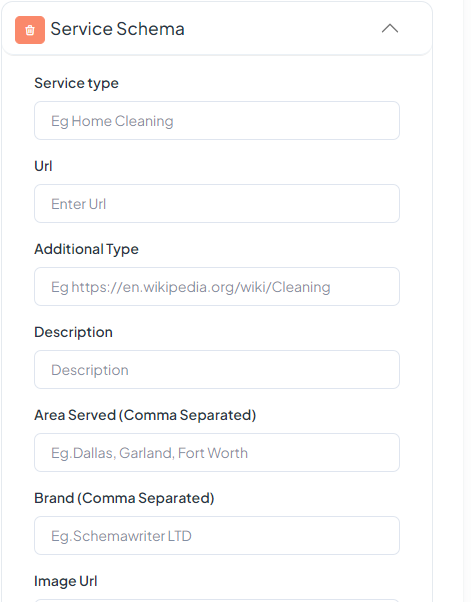
- Details Needed: Service Type, URL, AdditionalType (wikipedia relevant link to the service), Description, Area Served, Image URL, logo URL, Service output
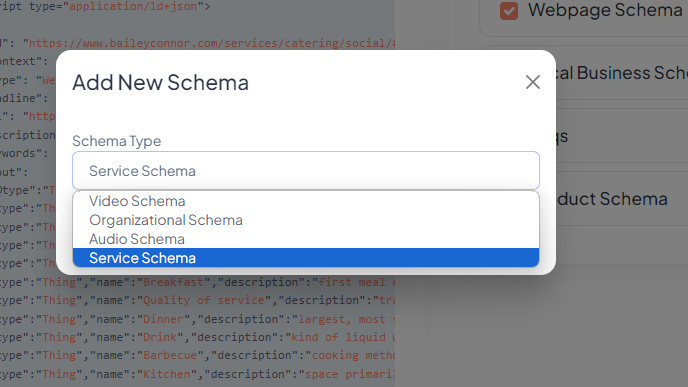
- Fill up the details, add the target keywords and content from the Service page that you are creating this Service Schema for.
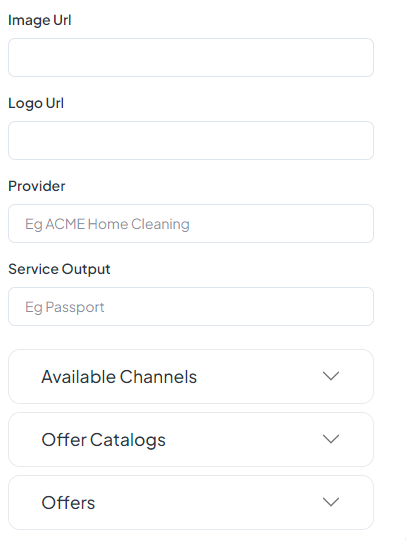
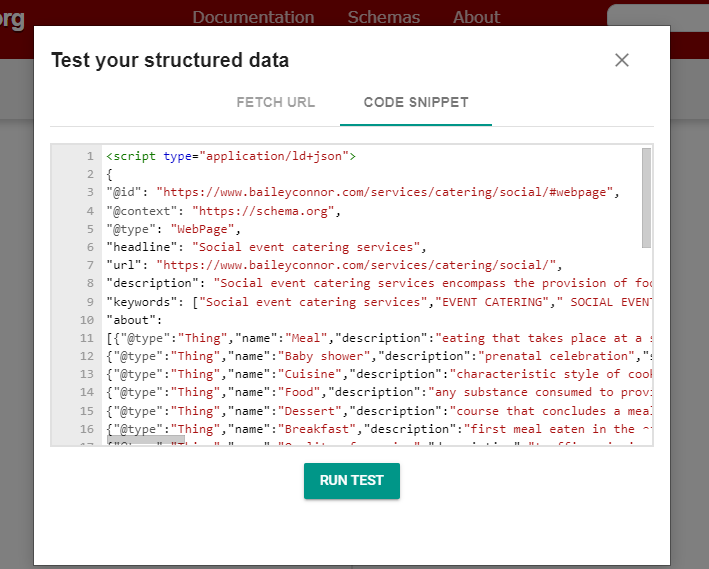
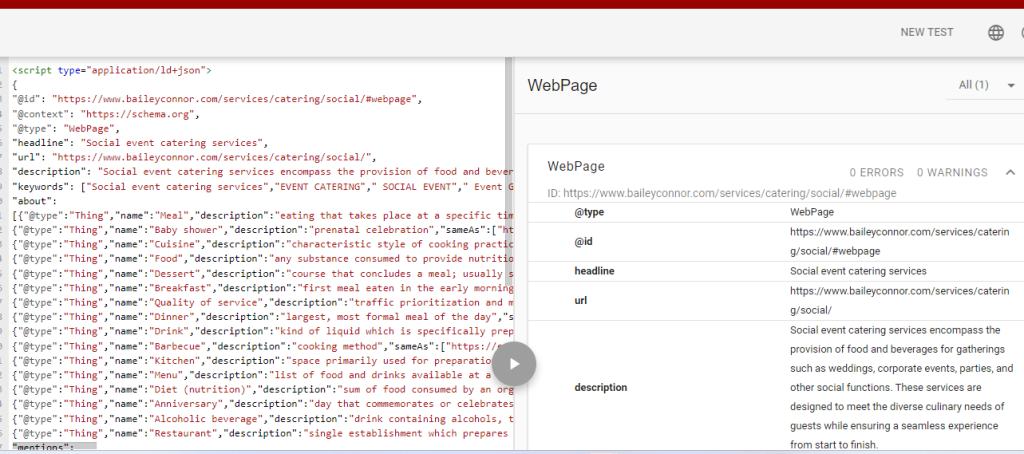
- If all the details are correct and reviewed, copy the generated code and paste it at Schema Validator – Code Snippet. Check the code for any errors. Review again all the details and check for any issues. You can edit the code on the left side if you see some errors.
- Copy the code. Open the website backend at Lastpass. Login to the website.
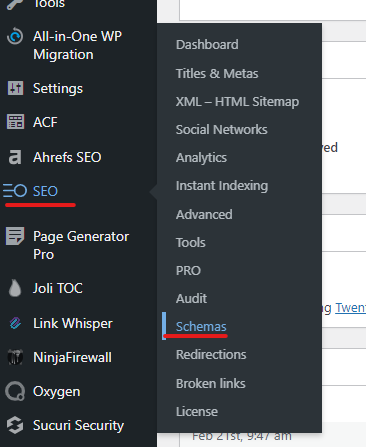
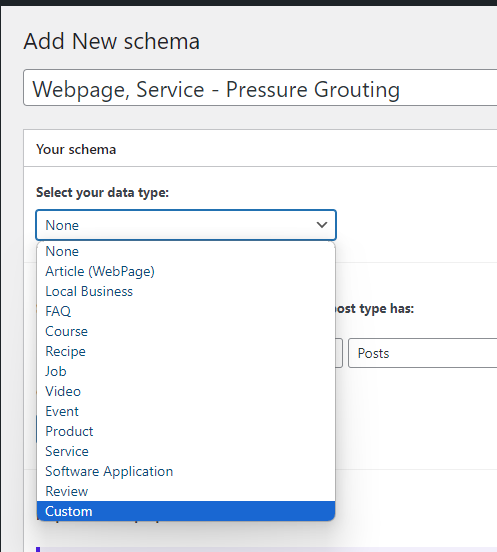
- Look for SEO Press Pro – Schemas located at the Left Side below. Click “Schemas” then “Add Schema”.
- Naming convention for the Schemas. SCHEMA TYPE – PAGE NAME
- Under “Select your Data type”, choose “Custom”.
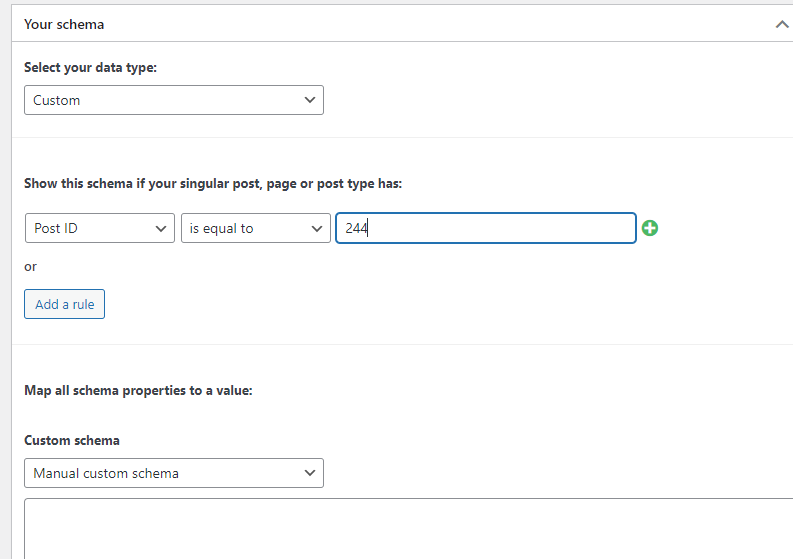
- Choose “Post Type” – is equal to “Pages”. If you are implementing a schema that is for all pages. Examples are Organization, Website, image/Logo, and LocalBusiness.
But if you are implementing a schema for only a specific page, choosing “Page id” is equal to “PAGE ID NUMBER”.
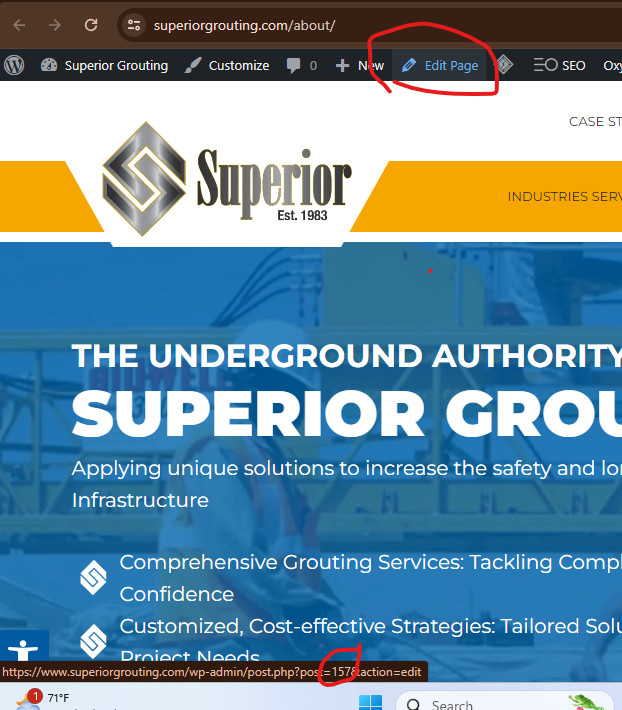
- To find the Page ID, open the URL. Point the mouse at the “Edit Page” option.
Then look at the URL and the number at the bottom. The Page ID is commonly after “post=”. Or go to Pages, point the mouse at the “Edit” button and see the Page ID at the bottom.
- Paste the generated schema markup code at the big box below. Then click “Publish”.
To check if your schema markup has been properly installed, open the page you are implementing it. Then click the Ahrefs SEO toolbar to check for any issues.
Open each type of the schema markup implemented and do a final checking for details. If any errors arise, go to ChatGPT paste the code, and ask to find the error in the code.
6.3. Tools and Resources
SchemaWriter – https://schemawriter.ai/
SEO Press Pro – Schemas
Google Tag Manager – https://tagmanager.google.com/
Schema Validator – https://validator.schema.org/
ChatGPT4
7. Safety and Compliance Measures
Applicable Regulations:
- Ensure compliance with Google’s structured data guidelines to avoid penalties.
- Organization Schema Properties
- Webpage Schema Properties
- Service Schema Properties
- LocalBusiness Schema Properties
- FAQ Schema Properties
- Product Schema Properties
- Collection Schema Properties
8. Quality Control and Evaluation Metrics
Performance Indicators:
- Increased organic search traffic
- Enhanced visibility in search results
- Error-free schema markup in Search Console
9. Exception and Problem Handling
- Addressing Errors and Warnings:
- Promptly address any errors or warnings flagged during testing using Schema Validator.
- Review and Rectification:
- Review and rectify schema markup if issues arise or if notified by Google Search Console as errors or duplicates.
- Note that errors in duplicates can be caused by a default FAQ schema generator in a widget that is toggled on.
- Handling Unavailable Results in Schema Validator:
- If Schema Validator doesn’t show any results when checking the generated Schema Markup code due to high traffic requests, close the existing tab, or try checking the code in an incognito page.
- Ensuring Accuracy:
- Sometimes, schema markup created by Schemawriter may seem error-free in Schema Validator but show errors when scanned by Google Search Console. To ensure accuracy, check the implemented website using the Ahrefs Toolbar.
- Backup of Schema Markup:
- Before any website revision or development, ensure that all schema markup from SEOPress Pro schemas is backed up in Google Docs for future reference.
10. Documentation and Record Keeping
Documentation Requirements:
- Schema Implementation Tracking Sheet:
- Create a sheet listing all pages, including posts, and mark which Schema Markup type has been implemented
- Schema Markups Google Docs:
- Record all the implemented schema markups in a Google Docs document, especially when a website development will undergo changes for easy reference and tracking.
11. Procedure Review and Update
Review Frequency:
Review Frequency: Bi-annually to incorporate any schema markup updates or changes in best practices.
Additional properties can be added to improve the schemas implemented.