
1. Procedure Title
Name of the Process: YouTube Video SEO (Invideo.AI)
2. Purpose
Brief Description: To establish a standardized process for video SEO optimization for Authority Solutions showcasing our different SEO services.
3. Scope
Involved Areas: SEO Team
4. Responsibilities
Roles and Responsibilities of SEO Team:
- Create ChatGPT prompt to run in InvideoAI for generating SEO videos
- Video Optimization
- Uploading to correct YouTube playlist
- Adding the published video URL to SERPed
5. Definitions and Key Terms
Glossary:
- Optimization – This includes optimizing video titles, descriptions, tags, and thumbnails to make them more relevant to search queries. Additionally, optimizing video metadata, such as transcripts and captions, can help search engines understand the content of the video better. By optimizing videos, businesses can increase their chances of appearing in search results and attracting more viewers to their content.
- Topic – refers to the subject matter or theme of a discussion, conversation, or writing. It is the main idea or focus of a particular piece of communication, in this case within the SEO scope. Each SEO topic is found in every tab name in the tracker.

6. Procedure Details
6.1. Preparation and Prerequisites
- Ensure the ChatGPT prompt is working properly and providing correct results
- Ensure InvideoAI hasn’t reached its limit yet
- Ensure you have access to the Authority Solutions YouTube account
- Install VidIQ and TubeBuddy extensions in Google Chrome. Log in using JS credentials
- Install YouTube Summary with ChatGPT & Claude in Google Chrome.
6.2. Step-by-Step Procedure
I. Video Generation
- Log in to https://invideo.io/
- Use this prompt and replace the highlight in the prompt with the question found in the tracker to generate a video.
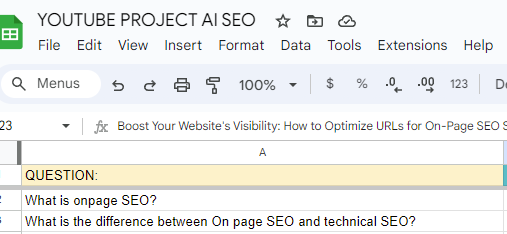
PROMPT:
Create a video that is about 80 seconds long that provides a few points that are helpful to the viewer of the video, and ends with a call to action regarding the video content. Then encourage them to like the video, subscribe to the channel and turn on notifications. Don’t say any of the script or slide queues that typically come before a : or suggest queues that are inside parenthesis – Use this video title and use this title as the topic to create content from: “WRITE QUESTION HERE” and use a female American voice for the voice-over. Include how Authority Solutions provides that SEO service. The topic should be included in the title. Do not add text overlays for images with text. Do not use the same images. Do not use the same short clips. Provide me a full text transcript. Do not add Istock images.
- Paste the prompt here:
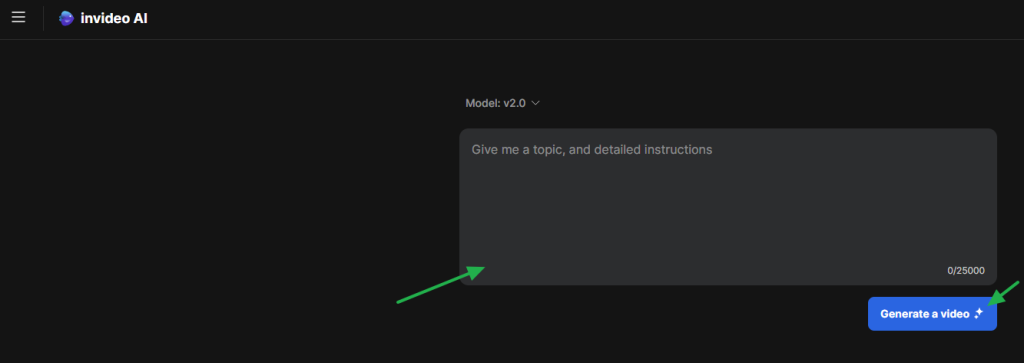
- Choose these settings, then click Continue.
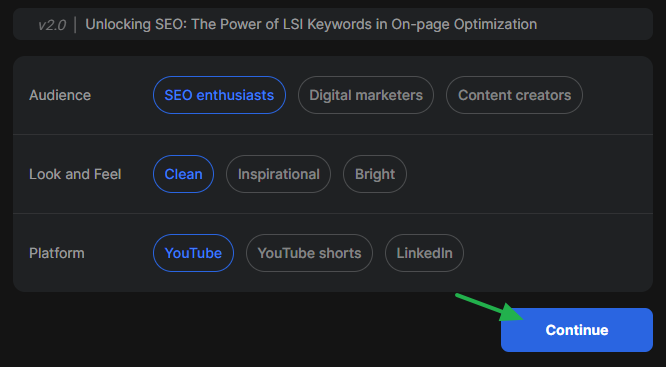
- Wait on the video generation.
- Review the video. Command the tool if you have any updates/clips to delete from the generated video
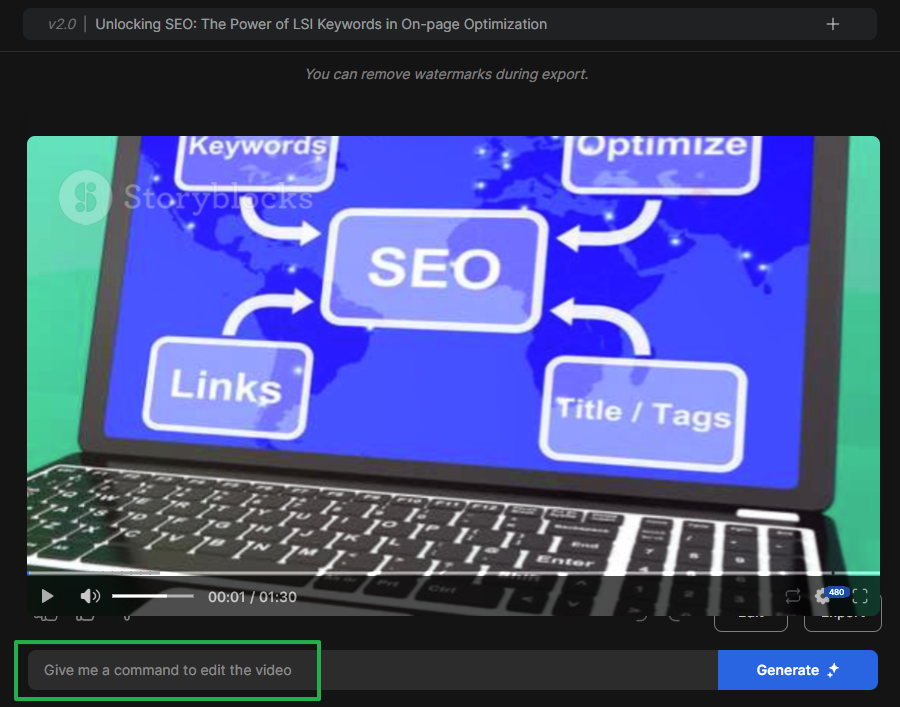
You can also edit the images/videos used in the video.
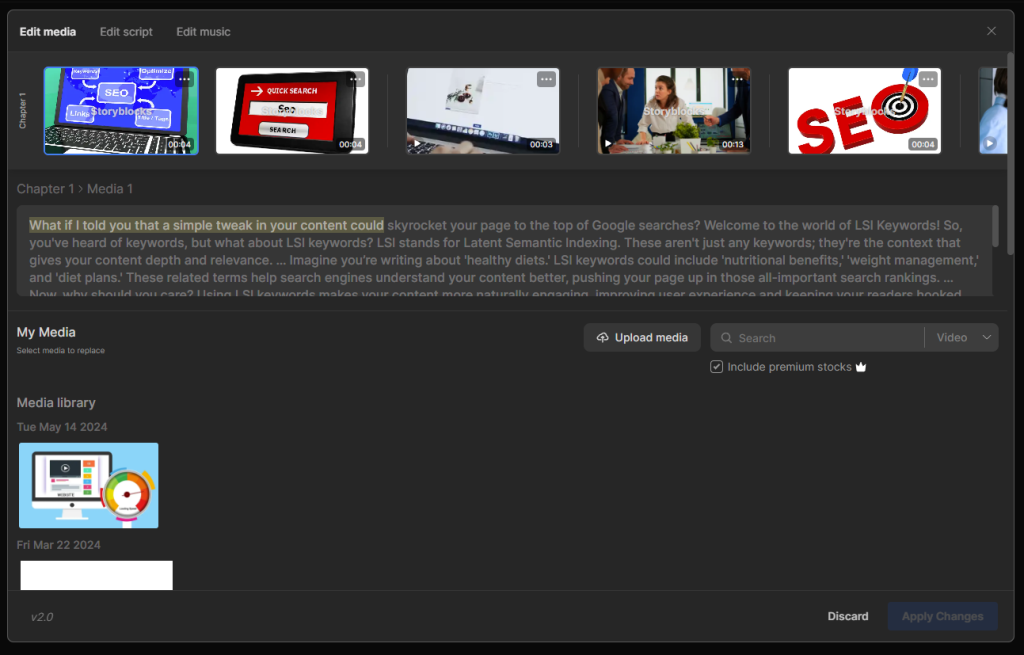
- Replace the last clip with either of the two Authority Solutions clip.
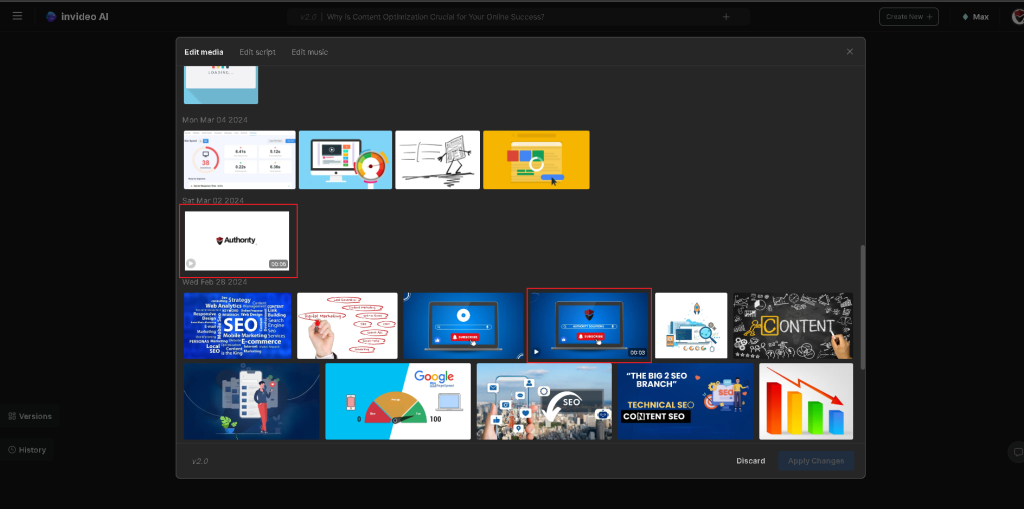
- If you have no edits to the video, click Export.

- Once done exporting the video, click Download. Video resolution is either 720p or 1080p.

II. Video Optimization
- Grab the Title and use ChatGPT/Voila to rephrase/redo the Title if there are such terms as “Unlocking, Mastering, etc. as this may look redundant across other videos OR remove the term/s.
For example:
Old Title: Unlocking SEO: The Power of LSI Keywords in On-page Optimization
New Title: The Power of LSI Keywords in On-page Optimization
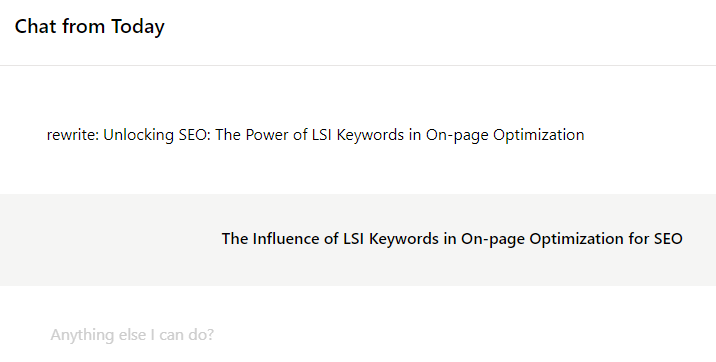
- Update the topic in this prompt and use it to create a video description.
DESCRIPTION PROMPT:
🌟 Welcome to Authority Solutions’ YouTube Channel! 🌟
TOPIC: (The Influence of LSI Keywords in On-page Optimization for SEO)
“INSERT A DESCRIPTION ABOUT THE TOPIC. USE HASHTAGS and remove the topic name”
If you find this video helpful, make sure to SUBSCRIBE to our channel for more amazing content. Hit the notification bell 🔔 so you never miss out on our latest uploads!
👍 Remember to LIKE this video if you found it helpful or entertaining. Your support means the world to us!
👉 FOLLOW us across our social media platforms to stay updated with all our latest news, tips, and exclusive content:
Facebook: https://www.facebook.com/AuthoritySolutions/
Instagram: https://www.instagram.com/authority_solutions/
Twitter: https://twitter.com/TheSEOAuthority
LinkedIn: https://www.linkedin.com/company/authority-solutions/
SHARE this video with friends, family, or anyone who might benefit from it or simply enjoy our content. Sharing really helps our channel grow and allows us to create more fantastic videos for you!
🌐 For more detailed information, exclusive content, and the latest updates, make sure to visit our website: https://www.authoritysolutions.com/services/seo/ (Note that you need to tweak the link to match the service we have based on the video. Example: https://www.authoritysolutions.com/services/seo/on-page)
Thank you for watching! Begin your journey to mastering SEO and boosting your online presence today. Explore our playlist for expert advice on SEO and digital marketing: “ADD PLAYLIST LINK”
Do not tweak the emojis and keep it
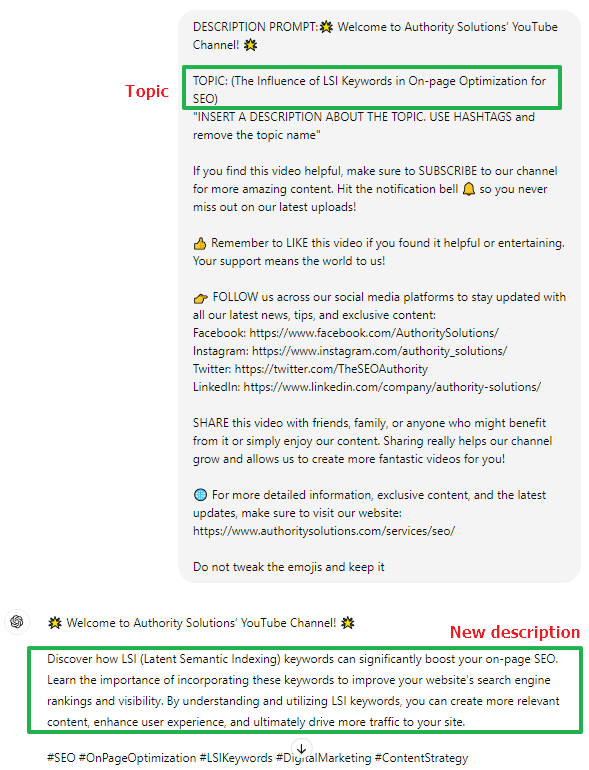
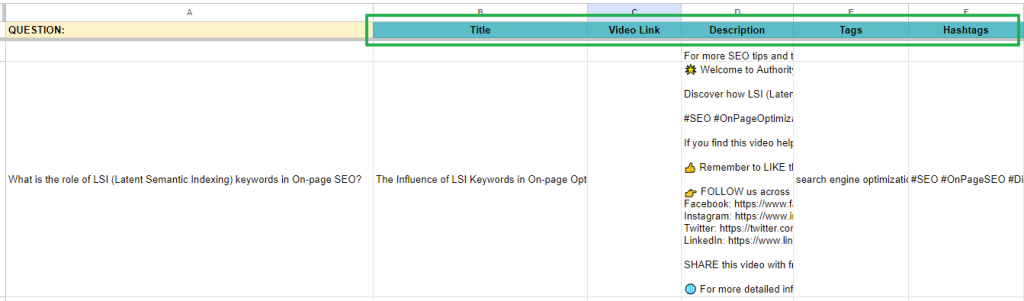
- Copy the entire description and paste it on the tracker.
- Create hashtags according to the topic. Do not forget to add a snippet of the video title in the hashtag (you can also use the question as an alternative to the title snippet).
- Add the question in the tags that will be placed in youtube.
III. Uploading Video to Youtube
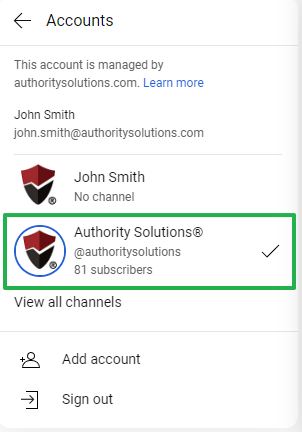
- Use the John Smith account to access the Authority Solutions’ YouTube channel.
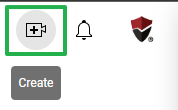
- Click the video icon to upload a video.
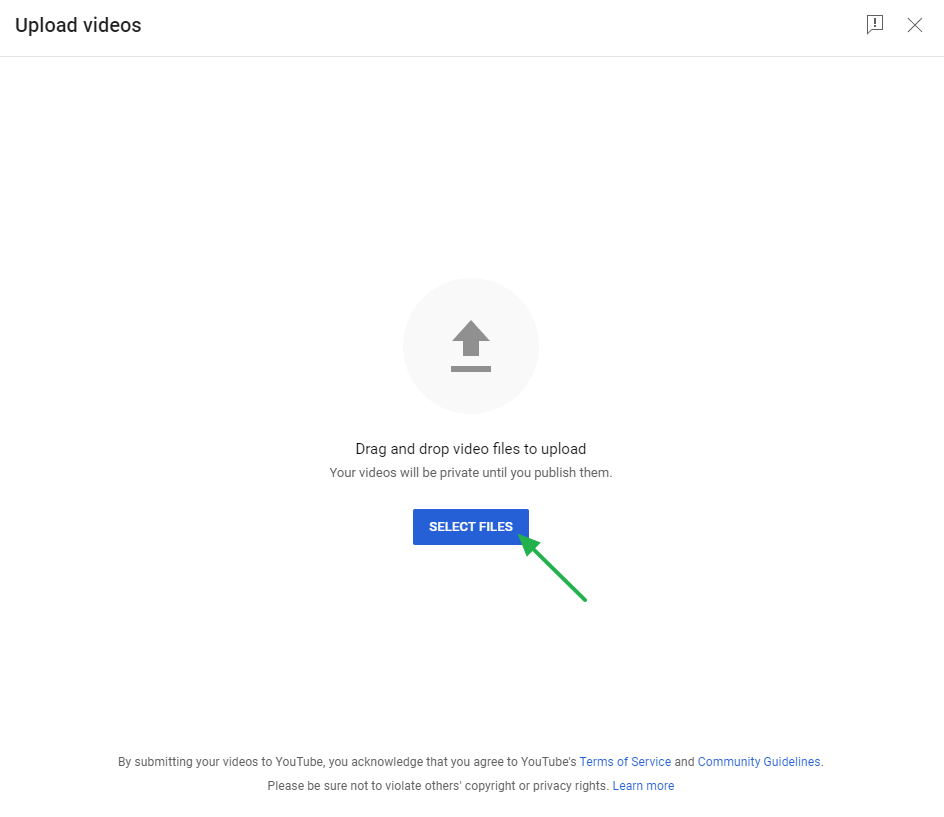
- Select the file you want to upload.
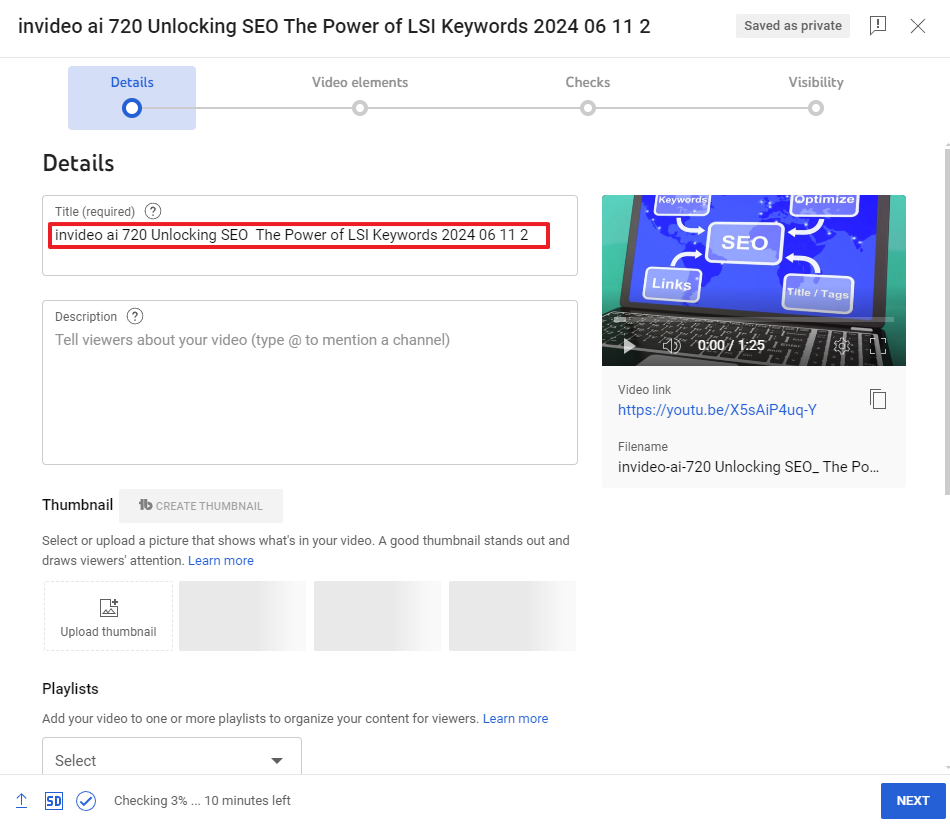
- Update the necessary information.
- Title
- Description
- Playlist
- Audience – No, it’s not made for kids
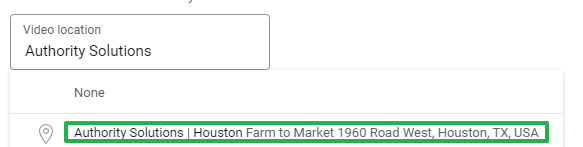
- Video location Authority Solutions Houston
-
Video Thumbnail Creation
- Log in to Canva using the JS account.
- Search for YouTube Thumbnail templates.
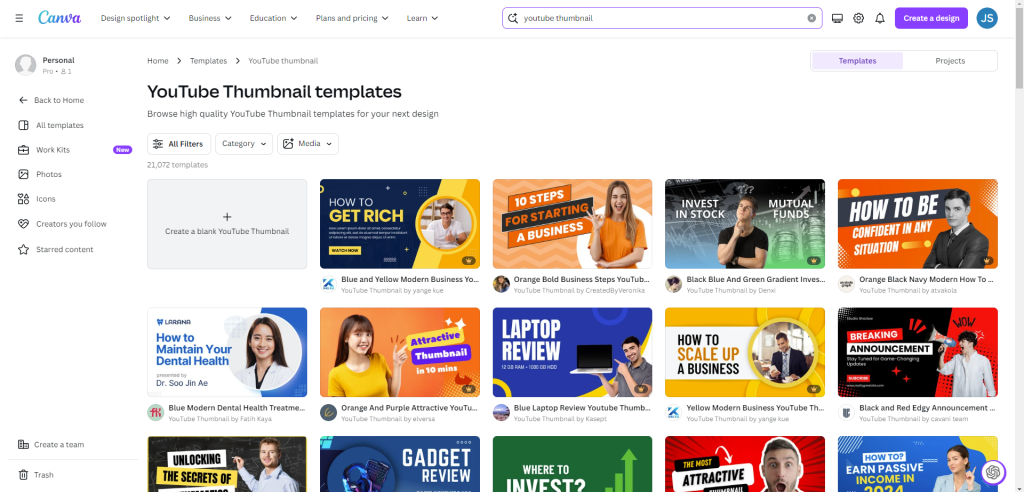
- Choose an appropriate thumbnail to use.
- Update the text in the image with your new video title.
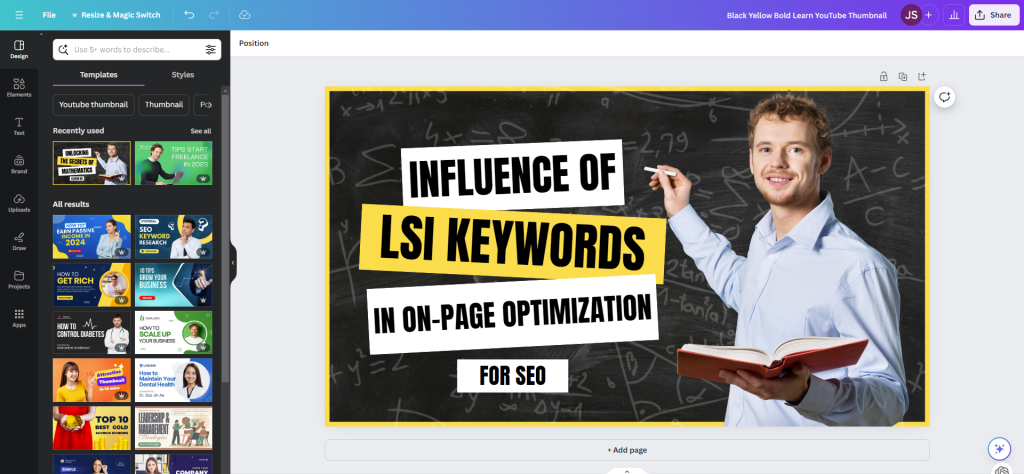
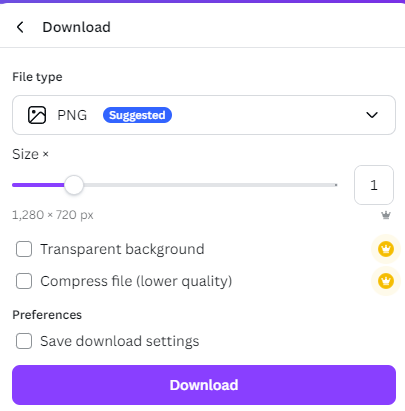
- Download the file.
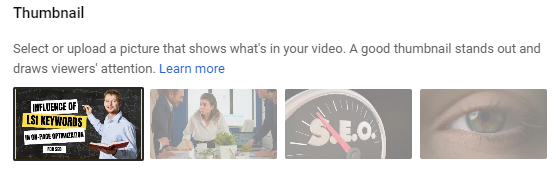
- Upload the video thumbnail you created in Canva.
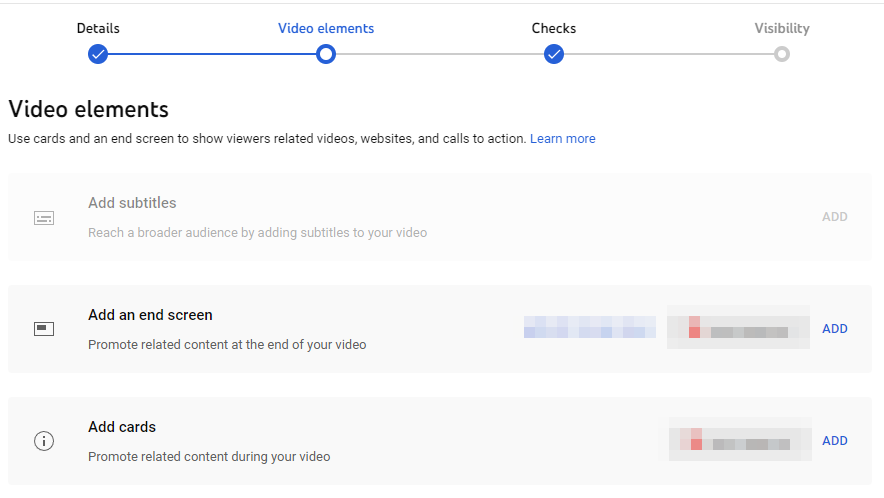
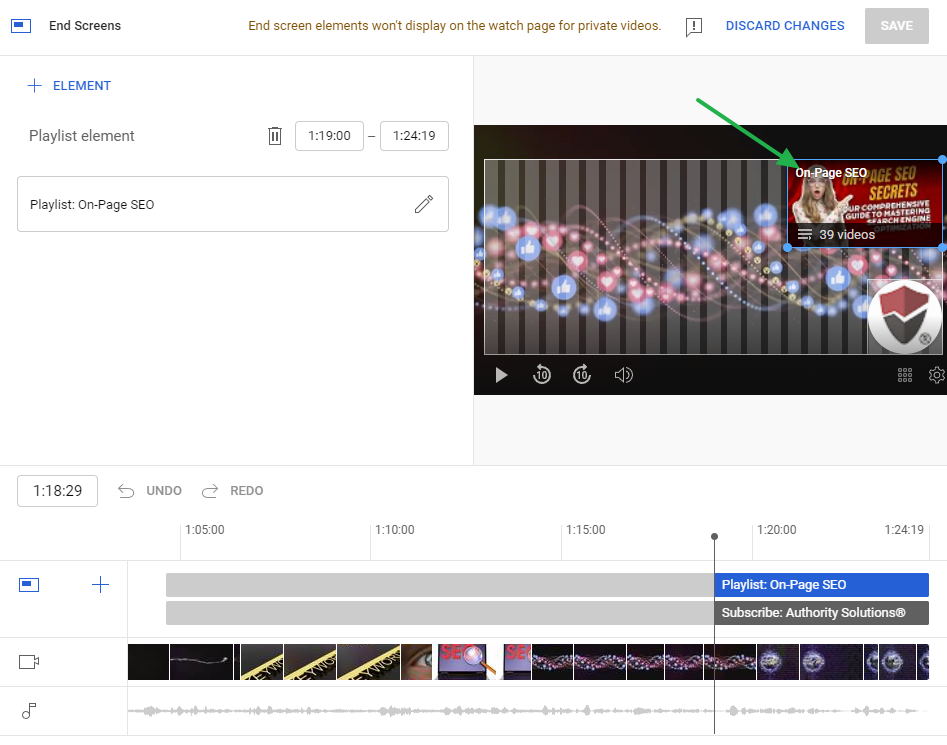
- Add Video Elements (End Screen, Cards)
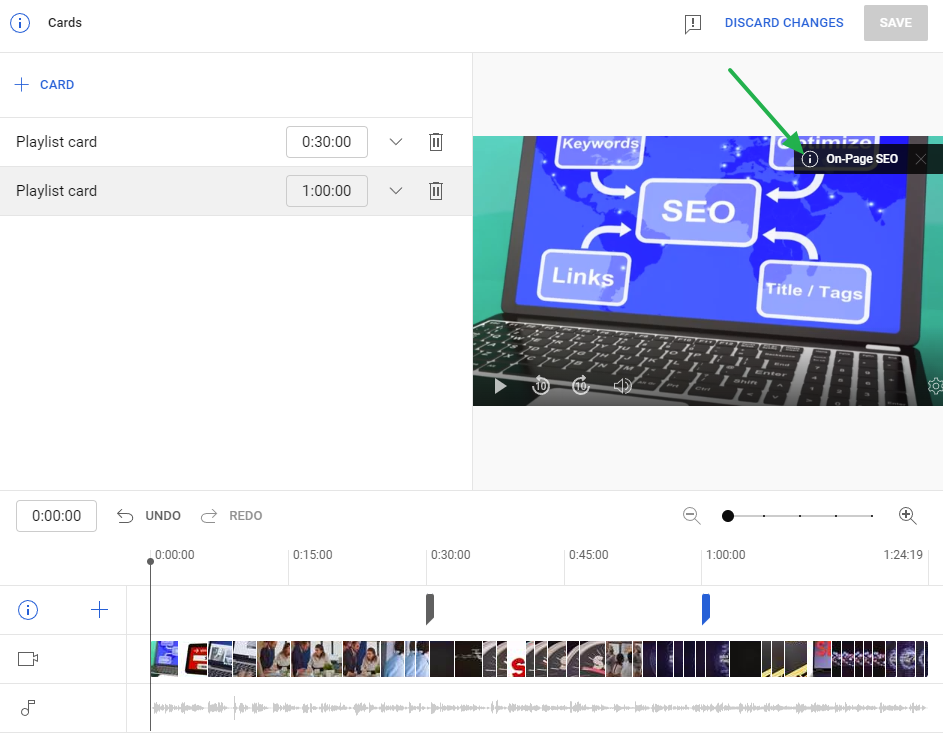
- Click Next.
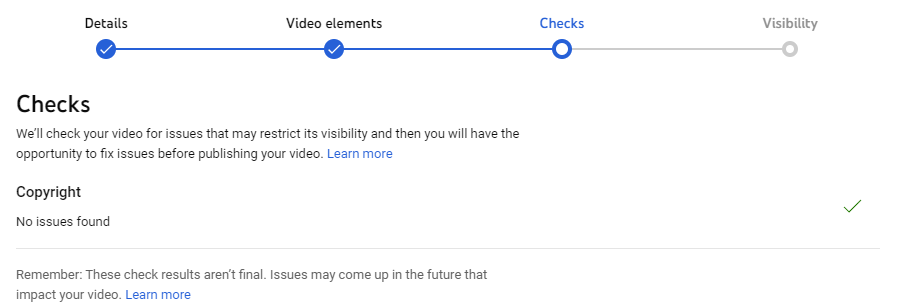
- Ensure there are no copyright issues, then click Next.
- Set a schedule of the video to go public. Check the tracker to ensure there will be no more than 2 videos going public on that day.
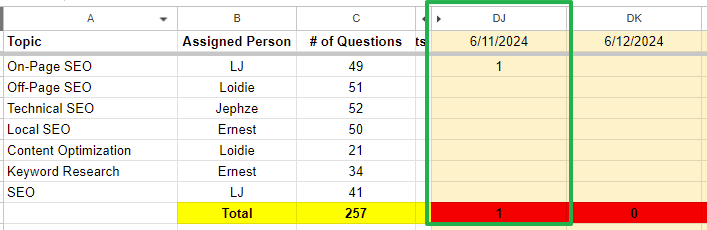
The number in the column is the number of videos scheduled to go public that day.
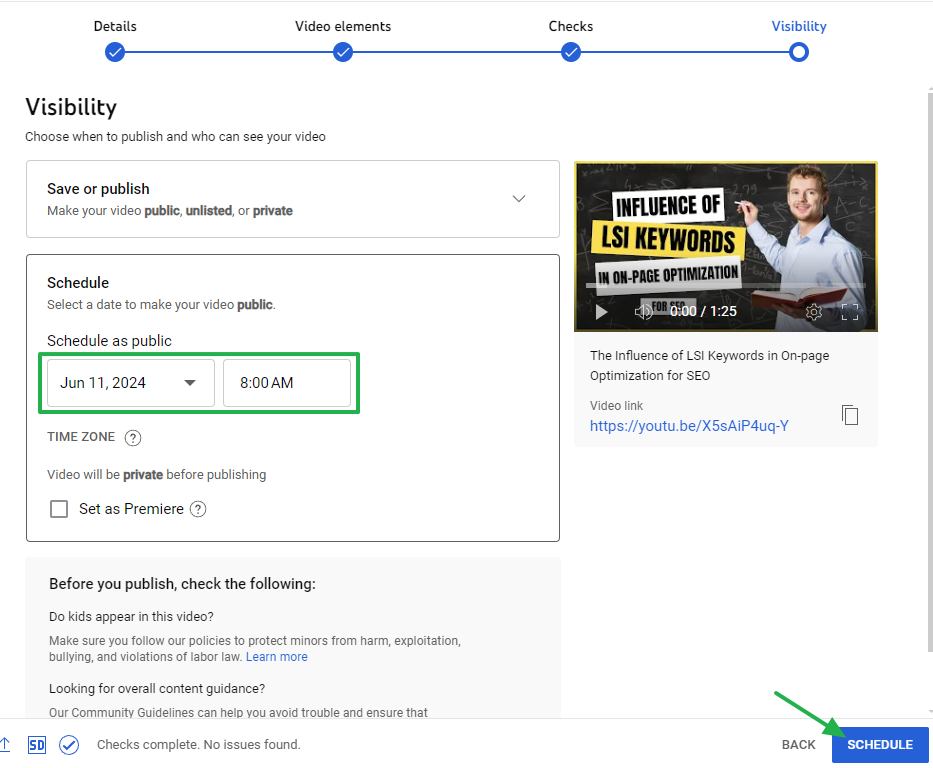
- Grab the video URL and paste on the tracker.
- Once done scheduling, go back to the video editor.

- Go to Tags. Add keywords related to your video topic based on TubeBuddy and VidIQ suggestions. Ensure that these keywords have high keyword scores. Also, it is recommended to use a minimum of 5 tags and a maximum of 15 tags per video.
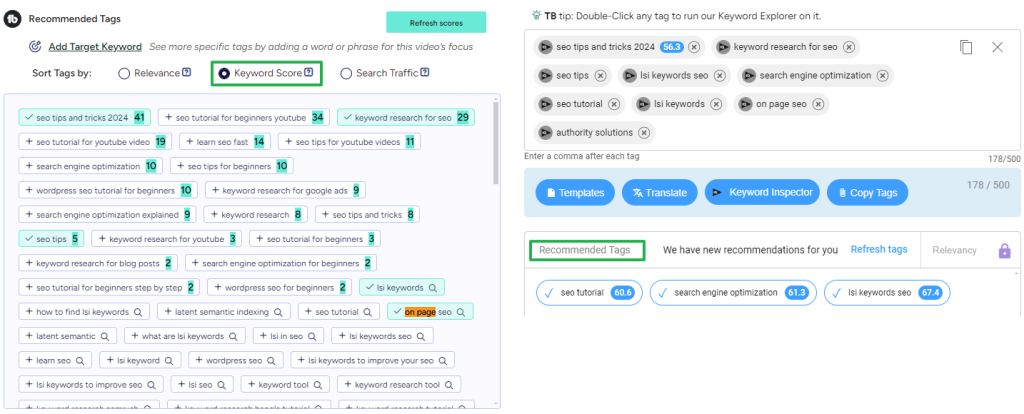
- Click Save.
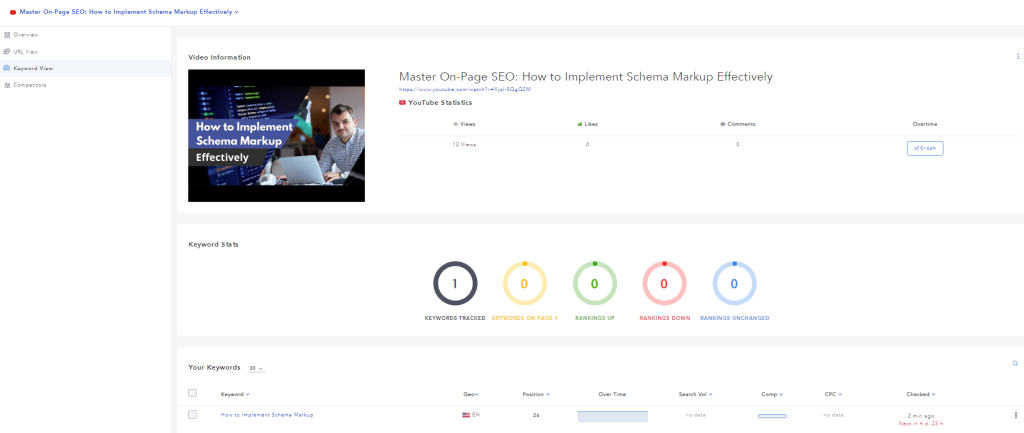
IV. Adding video to SERPed YouTube tracker after two weeks.
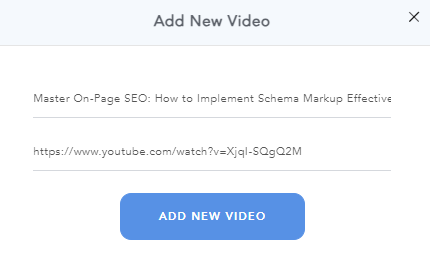
- Add video name and full video URL.
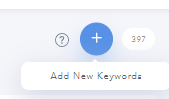
- Click + to add keywords
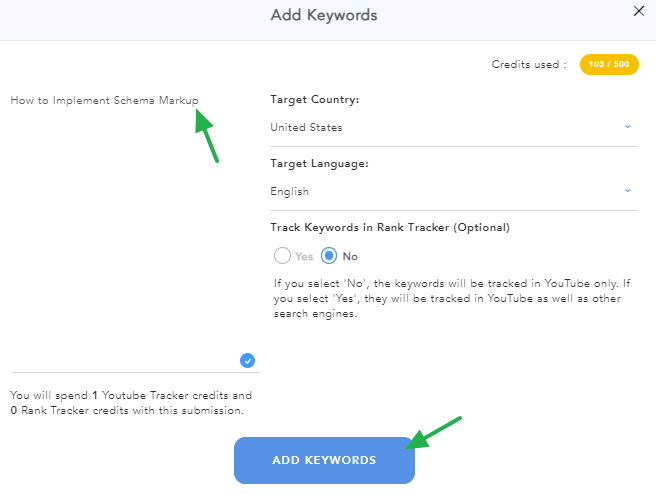
- Add relevant keywords from the video title as keywords to track.
V. Transcript
- Go to the YouTube video you uploaded.
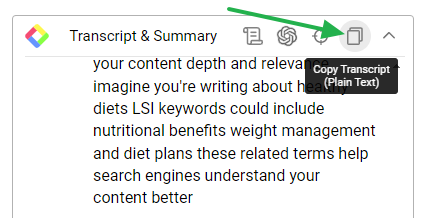
- Using the YouTube Summary with ChatGPT & Claude Chrome extension, copy the transcript.
- Use ChatGPT to add punctuations to the copied transcript.
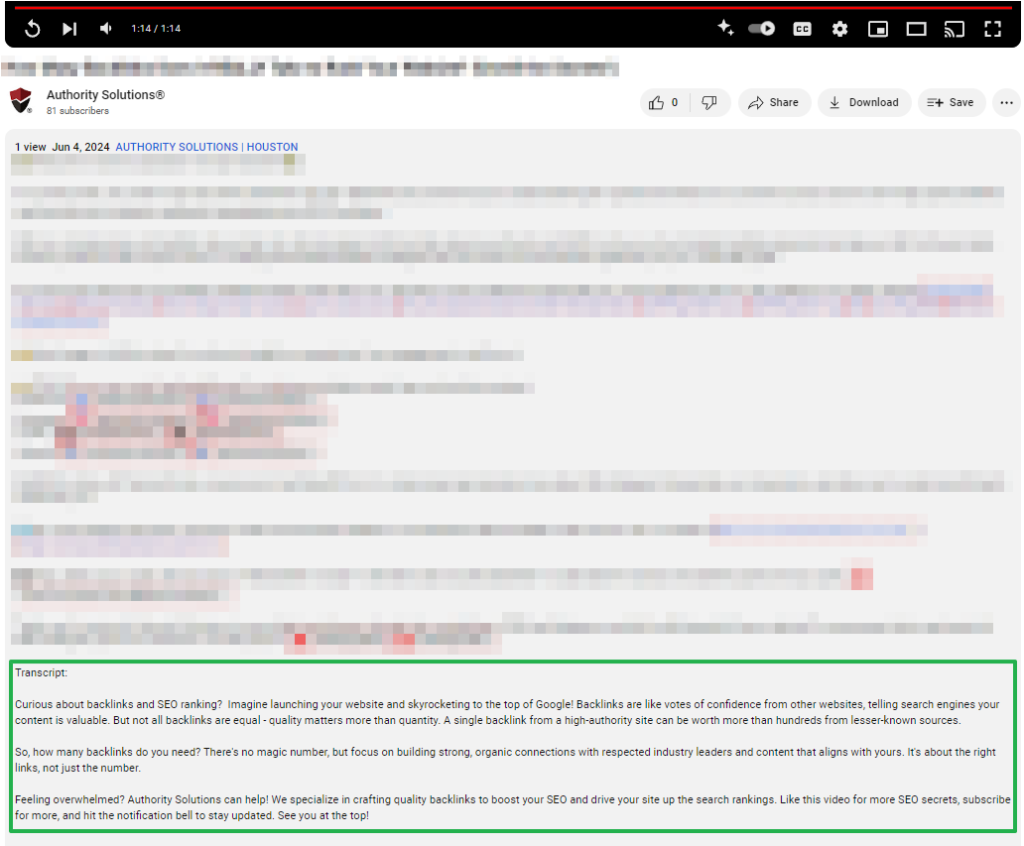
- Copy the updated transcript to the last portion of the YouTube video description and hit Save.
6.3. Tools and Resources
- InvideoAI
- Authority Solutions YouTube channel
- SERPed
- TubeBuddy
- VidIQ
- Canva
7. Quality Control and Evaluation Metrics
Performance Indicators:
- Video Engagement Rate: Measure the percentage of viewers who interact with the video content (likes, shares, comments, etc.).
- SEO Ranking: Monitor the video’s position in search engine results pages for relevant keywords to assess visibility and reach.
- Watch Time: Measure the total amount of time users have spent watching the video to understand engagement levels.
- Conversion Rate: Evaluate the rate at which video viewers take a desired action (e.g., signing up, making a purchase) after watching the video.
8. Exception and Problem Handling
- Real-Time Monitoring: Continuously monitor the video creation and uploading process to identify any issues as they arise.
- Issue Reporting/Adjustments: Immediately report any technical issues, adjust content discrepancies, or compliance concerns to the designated team member/leader.
- Documentation: Document all identified issues, including the nature of the problem, time of occurrence, and any steps taken to address it in the ClickUp task.
List of Dos and Don’ts (Generated Video)
- The topic should be included in the title.
- No text overlays for images with text.
- No use of the same images.
- No use of the same short clips.
- AI voice shouldn’t say any of the script or slide queues that typically come before a : or suggest queues that are inside parenthesis.
9. Documentation and Record Keeping
Documentation Requirements:
- Any member of the SEO team who is handling this task should update the YouTube SEO Tracker: YOUTUBE PROJECT AI SEO
- Title
- Description
- Tags
- Hashtags
- Ready to Publish?
- Date Published (CST)
- Publish time (morning/evening)
- Published Video Link
- Added to SERPed
- Transcript
- Tags
- Cards
- Thumbnail
10. Procedure Review and Update
Review Frequency: As necessary, based on the updates of tools and game plans.